
Family
Keep the people in your household and the relationships among them.

Application support
GoThrive is a free app for people. Simply your life with single-point access to the things that matter.
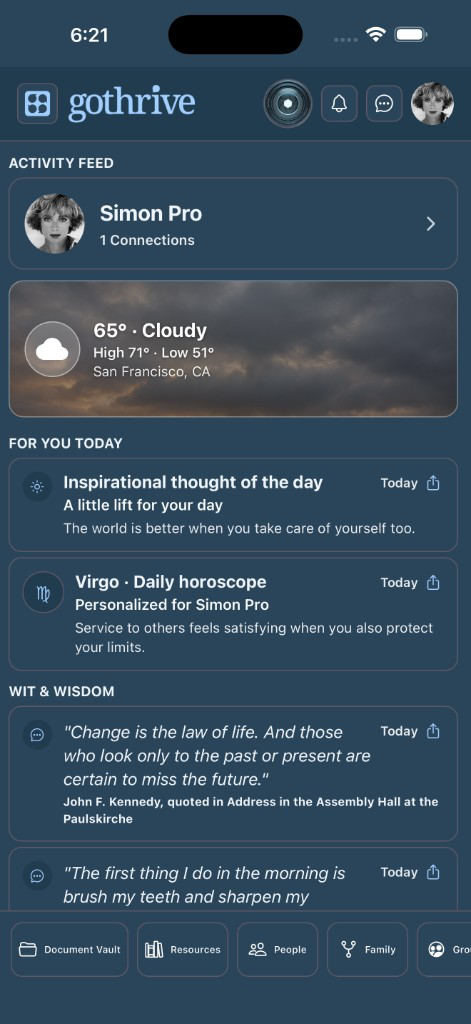
The menu, setup wizard, and a few of the screens you will use.
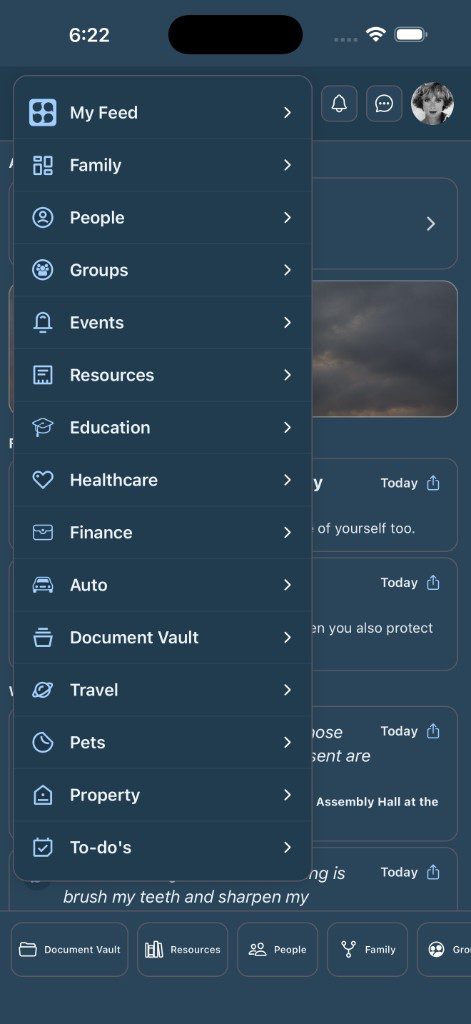
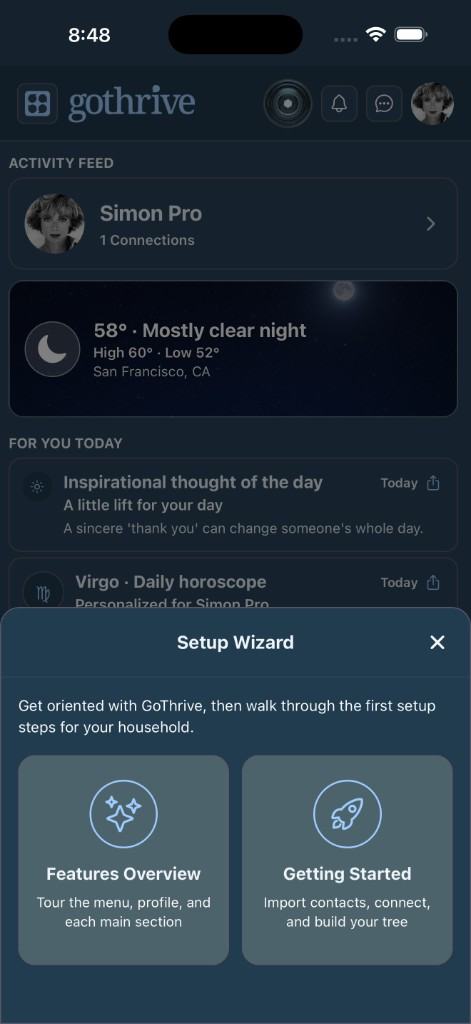
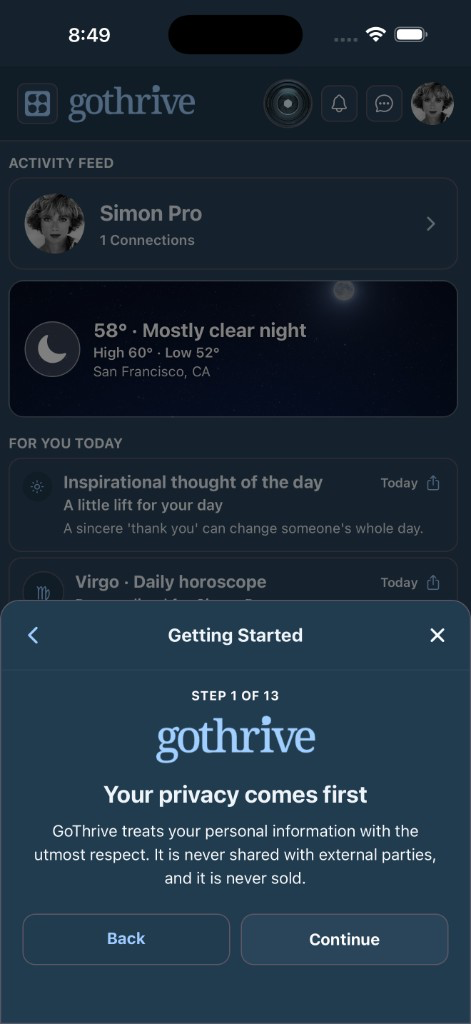
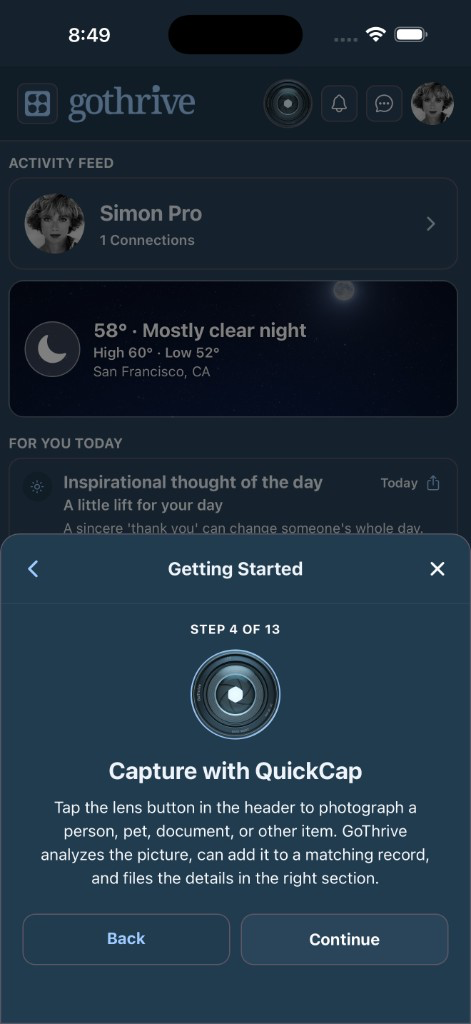
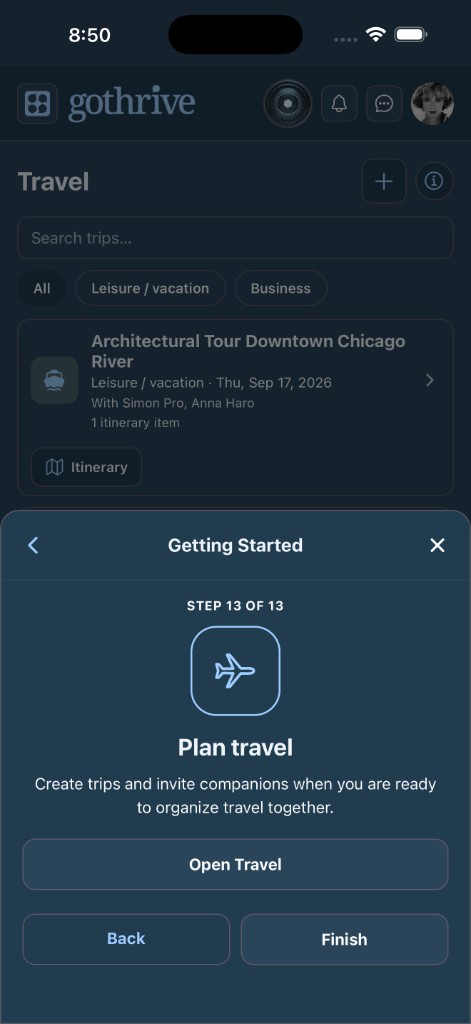
Open any section from the menu. The Activity Feed gathers what matters today from across the household.
Keep the people in your household and the relationships among them.

Save contacts, connect with other members, and see who is already on GoThrive.

File health records for the people you care for. These notes are for your own organization.

Keep school details and education records with the right person.

Store account notes and customer-service numbers you want close at hand.

Save a pet profile and a gallery of photos. QuickCap can match a new picture to a pet you already have.

Keep home details, photos, and insurance notes together.

Record vehicles and the papers that go with them.

File trips, confirmations, and the plans that belong with them.

Photograph or import documents. List view shows a thumbnail of each item.

See GoThrive events beside calendars you subscribe to from your device.

Track tasks and assign one when the person has a GoThrive account email.
Tap the lens in the header to photograph a person, pet, document, or other item. GoThrive reads the picture, can match it to a record you already have, and asks you to confirm before filing it.